Browser Agents in a macOS VM
Why DevTools sessions failed in a container, and how a virtual machine and a loopback proxy fixed them.
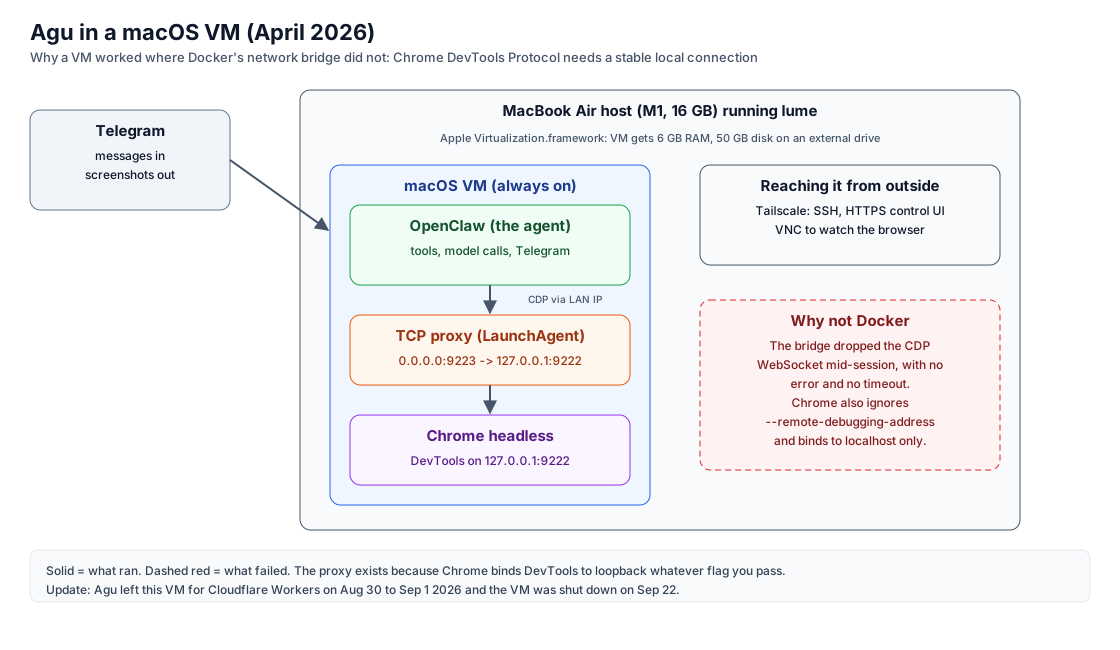
An agent that only calls APIs can run almost anywhere. An agent that drives a real browser is more demanding, because the Chrome DevTools Protocol keeps a WebSocket open for the whole session and expects that connection to stay up.
Agu, my personal agent, needed to navigate sites, fill in forms and take screenshots. This post describes the setup I moved him to in April 2026, a macOS virtual machine, why the move was needed, and the trade-offs that come with it.
Where this started
Agu is built on OpenClaw, an open-source agent framework: it connects a language model to a chat channel (Telegram, here) and gives it tools, including control of a web browser. I started running it early in 2026.
An agent with that kind of access should not run loose on a personal computer. It acts on its own, it can run commands, and it reads untrusted web pages. The safe default is a sandbox, so Agu ran in containers under Docker on my existing Mac: one container for the agent, a second running Chrome with a VNC view so I could watch what it did, and a small proxy in front of the AI gateway. The agent could read my project folder but not change it.
The other option was dedicated hardware: a separate small Mac just for the agent. For an experiment, buying a machine was hard to justify. Containers cost nothing, were quick to rebuild, and kept the agent fenced off from everything else on the host.
Chat and model calls worked well in that setup. The browser did not. The agent reached Chrome in the other container over Docker’s network, and that path was the weak point:
- Opening and reading pages worked, but clicking and typing failed intermittently.
- Sessions dropped part way through with no error, which left tasks half done.
- The browser container needed fixes just to come back cleanly after a restart.
Each problem had a workaround, and the workarounds kept piling up. Two months in, the useful question was no longer how to patch the network path but whether to remove it. A virtual machine answered both constraints at once: it is still a sandbox, separate from the host, and it gives the agent and its browser a whole machine of their own without buying one.
Requirements
- Reliable browser automation over the DevTools Protocol, for the length of a session.
- Automatic start after a reboot, without someone logged in.
- Remote management from a phone or another machine.
- Hardware I already own, with data kept local.
The setup
- Host. An M1 MacBook Air with 16 GB of memory.
- Virtual machine. macOS under lume, which uses Apple’s Virtualization.framework, with 6 GB of memory and a 50 GB disk on an external drive.
- Agent. OpenClaw, started at boot by a LaunchAgent.
- Browser. Headless Chrome, also a LaunchAgent, with the DevTools Protocol on
127.0.0.1:9222. - Proxy. A small TCP forwarder from
0.0.0.0:9223to127.0.0.1:9222, so the agent can reach Chrome over the virtual machine’s network address. - Access. Tailscale for SSH and an HTTPS control interface, and VNC to watch the browser when needed.
Findings
DevTools sessions do not tolerate an unreliable network path
Through Docker’s network bridge, DevTools connections dropped mid-session with no error and no timeout. The agent framework, model calls and Telegram integration all worked; only the browser failed. A socat bridge improved it for a while, then it failed in a different way. My working explanation is that the extra network layer interrupts the long-lived WebSocket, and any interruption ends the session. A full virtual machine, with its own network stack and a real browser, removed the problem.
Chrome keeps the DevTools Protocol on loopback
In this setup Chrome bound the DevTools Protocol to the loopback interface even with --remote-debugging-address=0.0.0.0 set. The agent needed a non-loopback address, so a small forwarder exposes it:
// Forward 0.0.0.0:9223 to 127.0.0.1:9222
const server = net.createServer((client) => {
  const target = net.connect(9222, '127.0.0.1');
  client.pipe(target).pipe(client);
});
server.listen(9223, '0.0.0.0');
It runs as a LaunchAgent next to Chrome.
A virtual machine is managed like a machine
Once booted, the virtual machine is set up like any Mac: tools installed, LaunchAgents for each service, networking configured. It was created with a single command:
lume create agu-vm --os macos --ram 6144 --disk 50 \
  --disk-path /Volumes/MacExtn/lume-vms/agu.lume
Trade-offs
- It needs an always-on Mac. When the host sleeps, the agent is unavailable.
- It takes real resources. 6 GB of a 16 GB host and 50 GB of storage.
- It is not portable. Moving it means moving a large disk image and reconfiguring services.
- When not to use it. If an agent does not drive a browser, a container on a small virtual server is simpler and cheaper.
Scope
- No performance figures are given. Apple’s framework runs the guest without CPU emulation on the same architecture.
- The explanation of the container failure is a working theory based on the symptoms, not a packet-level investigation.
What happened next
The agent moved from this virtual machine to Cloudflare Workers between August 30 and September 1, and the virtual machine was shut down on September 22. The DevTools findings above still apply to anyone running Chrome in a virtual machine or a container. The newer architecture is described in A Serverless Personal Agent.
References
- lume, macOS virtualization on Apple’s Virtualization.framework
For agents
Summary: Running a browser-automating agent in a macOS virtual machine (lume, Apple Virtualization.framework) instead of Docker, with headless Chrome on loopback, a TCP proxy to expose the DevTools Protocol to the agent, and Tailscale for remote management.
Prerequisites
- An Apple Silicon Mac with spare RAM and disk (the post used an M1 with 16 GB, giving the VM 6 GB and 50 GB on an external drive)
- lume (Apple Virtualization.framework)
- An agent framework that controls Chrome over the DevTools Protocol
Steps
- Create the VM with lume create (RAM, disk and disk path as in the post) and set it up like a normal Mac
- Run Chrome headless as a LaunchAgent with remote debugging on 127.0.0.1:9222
- Run a small TCP proxy as a LaunchAgent that forwards 0.0.0.0:9223 to 127.0.0.1:9222, because Chrome binds DevTools to loopback regardless of flags
- Point the agent's browser URL at the VM's LAN IP and port 9223
- Reach the VM over Tailscale (SSH, HTTPS control UI) and VNC when you need to watch the browser
Diagrams, in words
- A Telegram message reaches OpenClaw inside a macOS VM. The VM runs on a MacBook Air host through lume. OpenClaw talks to a TCP proxy on port 9223, which forwards to headless Chrome on 127.0.0.1:9222. Tailscale gives SSH and an HTTPS control UI, and VNC lets you watch the browser. A dashed red box shows Docker's network bridge, where the DevTools WebSocket dropped mid-session with no error.
Descriptions reflect the author's own deployments using generally available services and public documentation.
This post contains no credentials. Do not put tokens, API keys, service-token secrets or one-time codes into prompts or commits; use environment variables or secret stores.